# Case status

**Case status reflects the current stage of case processing**, either by the Emedgene platform or your team. Statuses enable case progress tracking and support a consistent, collaborative case review workflow.

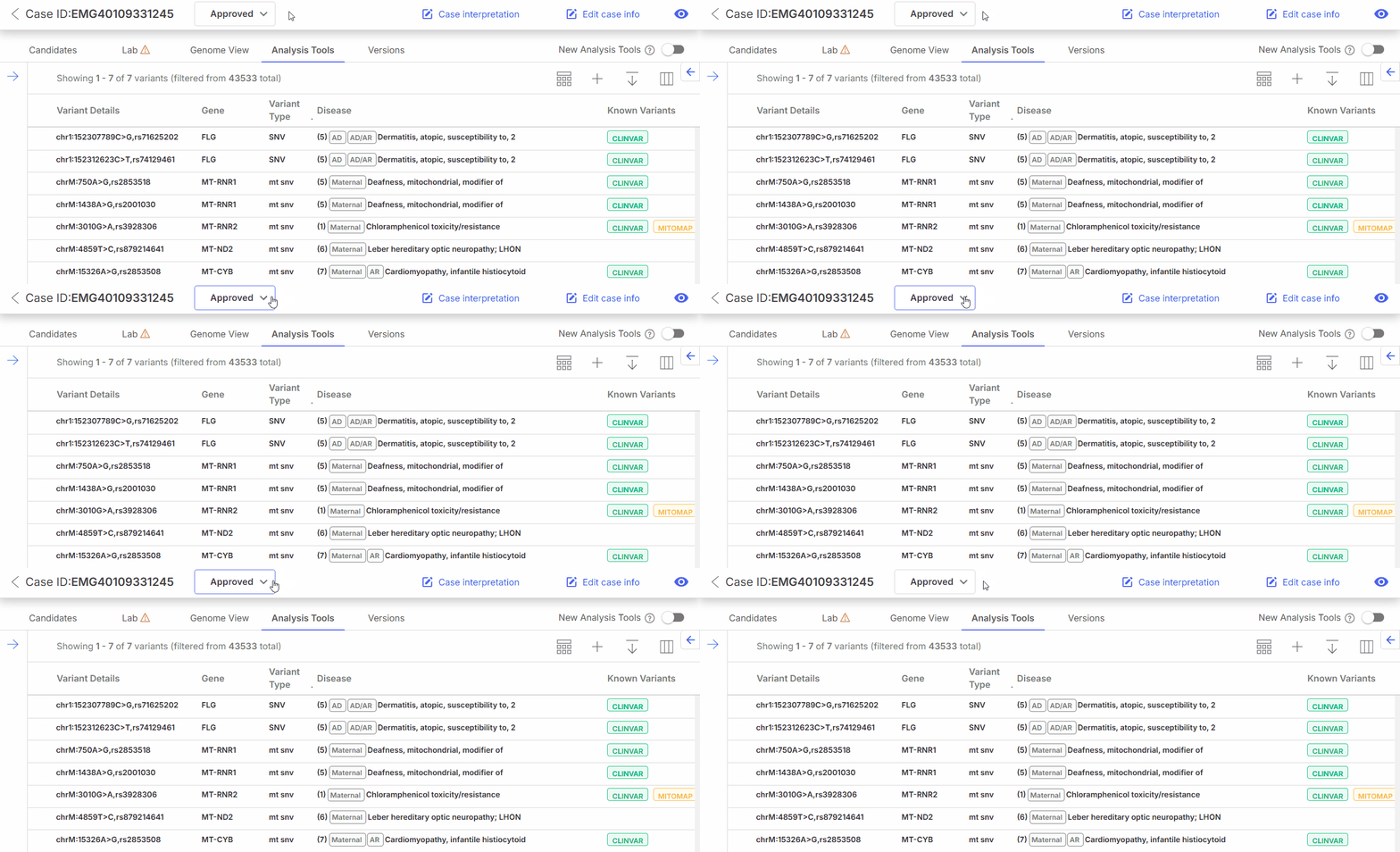
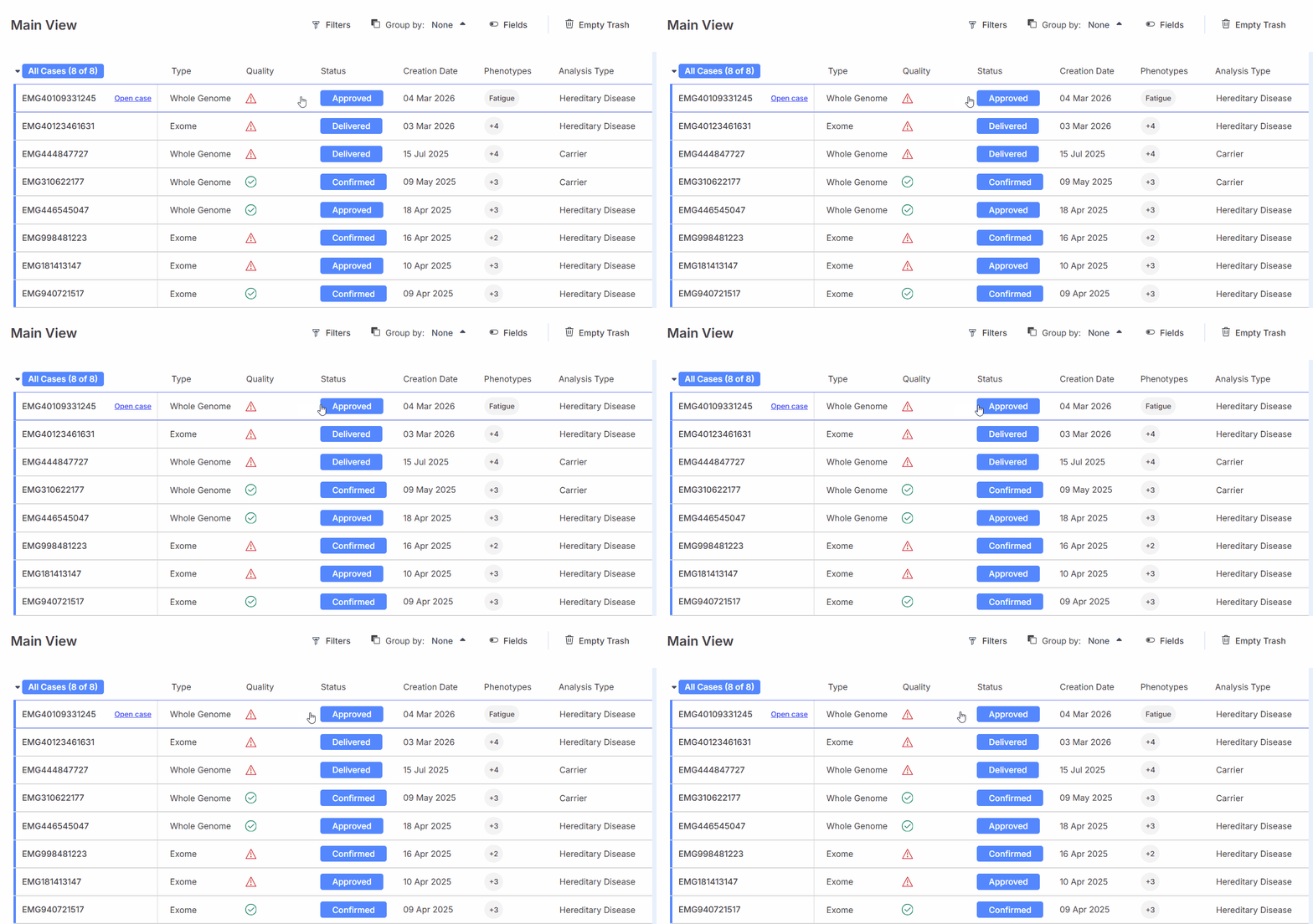
You can view and [update](https://help.emg.illumina.com/emedgene-analyze-manual/reviewing_a_case/case_status/how-to-update-a-case-status) the current case status in the **Cases table** and in the top bar of the **individual case page**.

{% tabs %}
{% tab title="Status in the Cases table" %}

<figure><img src="https://1131024994-files.gitbook.io/~/files/v0/b/gitbook-x-prod.appspot.com/o/spaces%2FGCW0DnLlE7QjoZPNmKIi%2Fuploads%2Fgit-blob-f1095febec326c24980a7101dedb30e49c92df42%2Fcase%20status%20cases%20table.gif?alt=media" alt=""><figcaption><p>Cases table</p></figcaption></figure>
{% endtab %}

{% tab title="Status in the individual case page" %}

<figure><img src="https://1131024994-files.gitbook.io/~/files/v0/b/gitbook-x-prod.appspot.com/o/spaces%2FGCW0DnLlE7QjoZPNmKIi%2Fuploads%2Fgit-blob-2a95f70274a0bc505ccbff65d5374521282b503f%2Fcase%20status%20case%20page.gif?alt=media" alt=""><figcaption><p>Case page</p></figcaption></figure>
{% endtab %}
{% endtabs %}

## Out-of-the-box and custom statuses

Emedgene provides out-of-the-box statuses, as well as the option to create custom statuses to match your case review workflow. To create, remove, or reorder case statuses for your organization, go to **Settings** > **Management** > [**Case statuses**](https://help.emg.illumina.com/emedgene-analyze-manual/settings/management/case-statuses).

## Case status history

Each time a case status is [updated](https://help.emg.illumina.com/emedgene-analyze-manual/reviewing_a_case/case_status/how-to-update-a-case-status), the change is logged and recorded in the case activity history.

To review case status updates:

{% stepper %}
{% step %}
In the relevant case, open the [**Case details** **panel**](https://help.emg.illumina.com/emedgene-analyze-manual/getting_around_the_platform/cases_tab/case_details)**.**
{% endstep %}

{% step %}
Select the **Activity tab**.
{% endstep %}

{% step %}
Filter logs by selecting **Case‑related activities** from the dropdown list.
{% endstep %}
{% endstepper %}

**Result:** The status history is show&#x6E;**,** along with other case-level logs.

## Learn more

<table data-view="cards"><thead><tr><th></th><th></th><th></th></tr></thead><tbody><tr><td><strong>Case statuses in a case lifecycle</strong></td><td>A visual overview of case status transitions and a reference description of each status.</td><td><i class="fa-up-right-from-square">:up-right-from-square:</i> <a href="case_status/case-statuses-in-a-case-lifecycle">Learn more</a></td></tr><tr><td><strong>How to update a case status</strong></td><td>Update case status.</td><td><i class="fa-up-right-from-square">:up-right-from-square:</i> <a href="case_status/how-to-update-a-case-status">Learn more</a></td></tr><tr><td><strong>Case status management</strong></td><td>Create custom case statuses and reorder them according to your workflow.</td><td><i class="fa-up-right-from-square">:up-right-from-square:</i> <a href="../settings/management">Learn more</a></td></tr></tbody></table>